
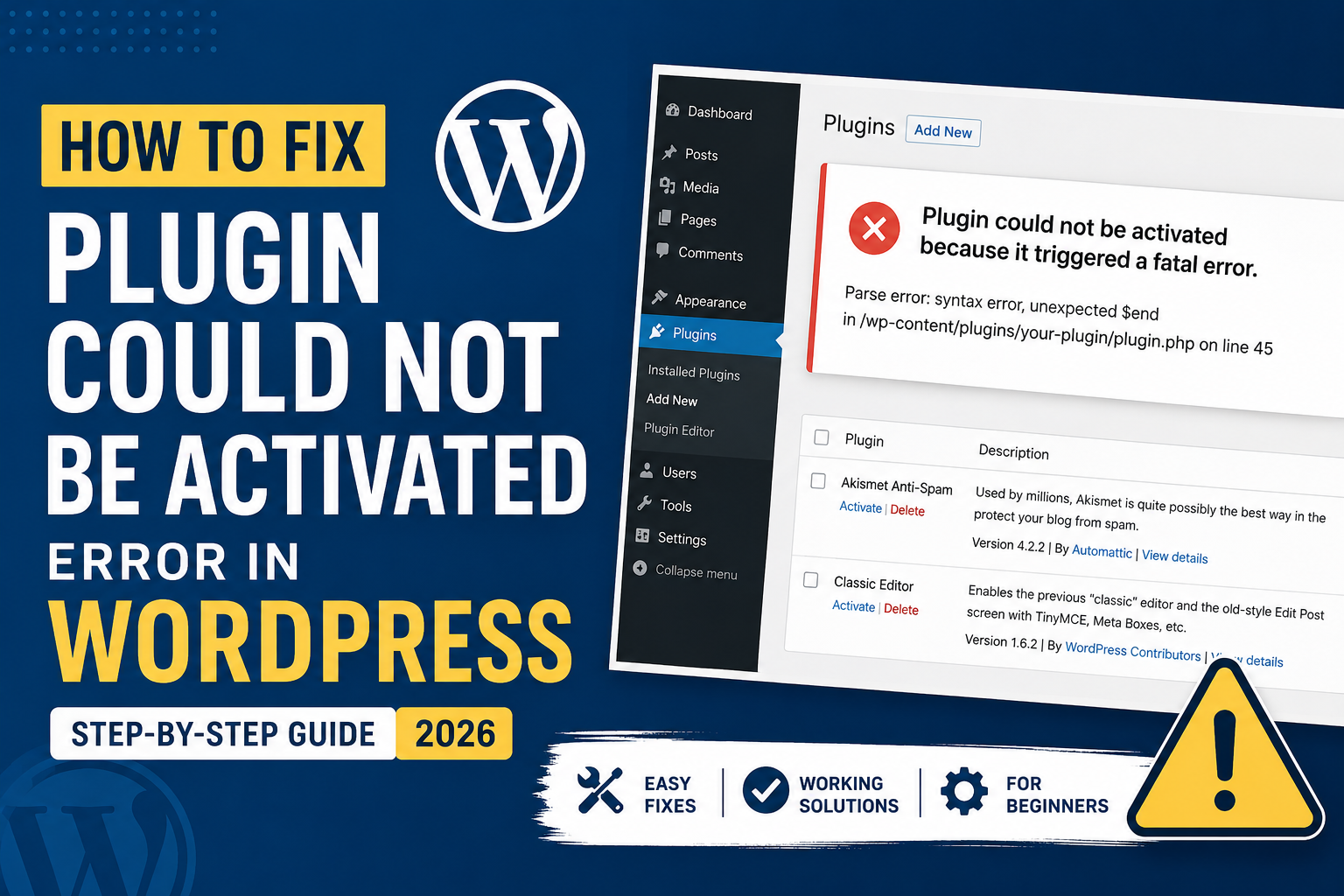
How to Fix “Plugin Could Not Be Activated” Error in WordPress (2026 Guide)

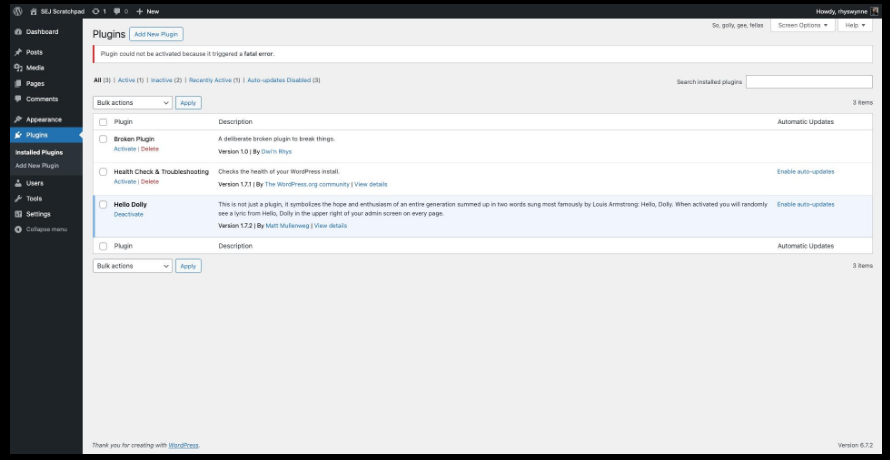
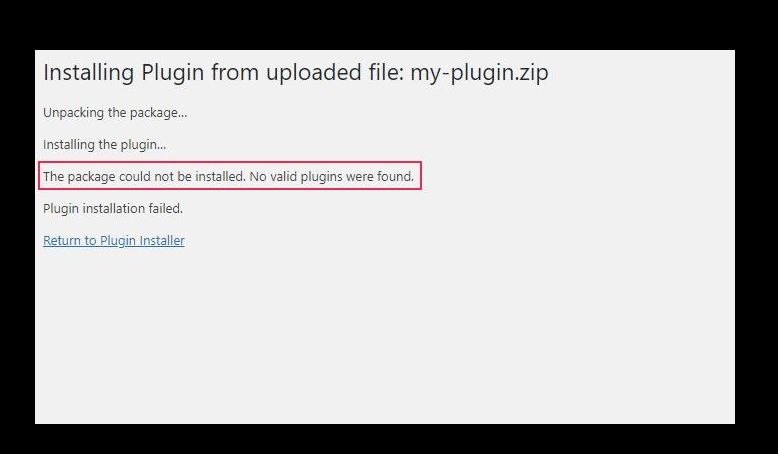
If you are seeing the “Plugin could not be activated because it triggered a fatal error” message in WordPress, don’t worry. This is one of the most common WordPress problems and can usually be fixed within a few minutes.
How to Fix “Plugin Could Not Be Activated” Error in WordPress (2026 Guide)
In this guide, you’ll learn all the working solutions step by step.
Why Does This Error Happen?
This error usually appears because of:
- Outdated PHP version
- Plugin conflicts
- Theme conflicts
- Low PHP memory limit
- Corrupted plugin files
- Hosting restrictions
- Incompatible WordPress version
1. Check the Exact Error Message
Before trying any fix, carefully read the complete error message.
Common examples include:
- “Fatal error”
- “Parse error”
- “Allowed memory size exhausted”
- “Plugin generated unexpected output”
The message often tells you exactly what is causing the issue.
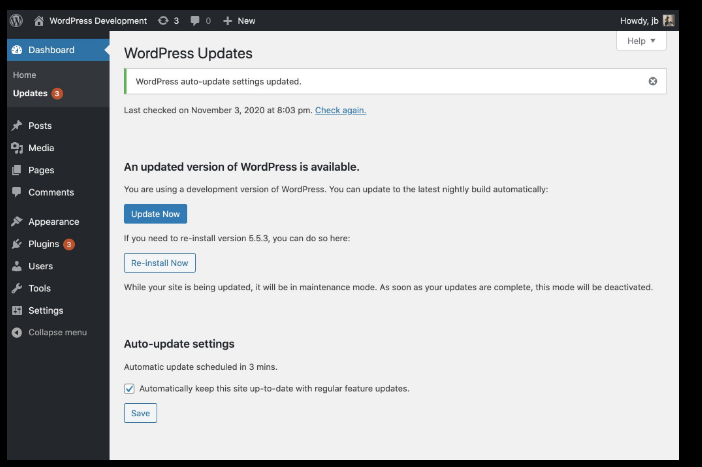
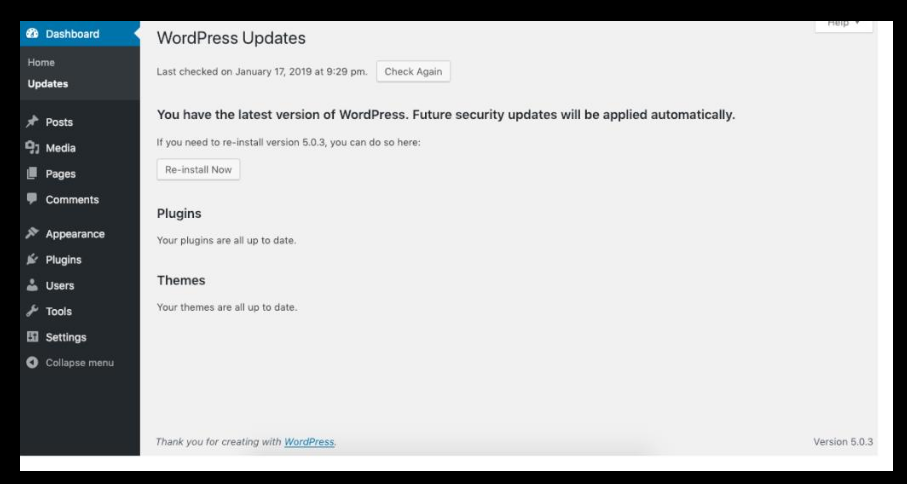
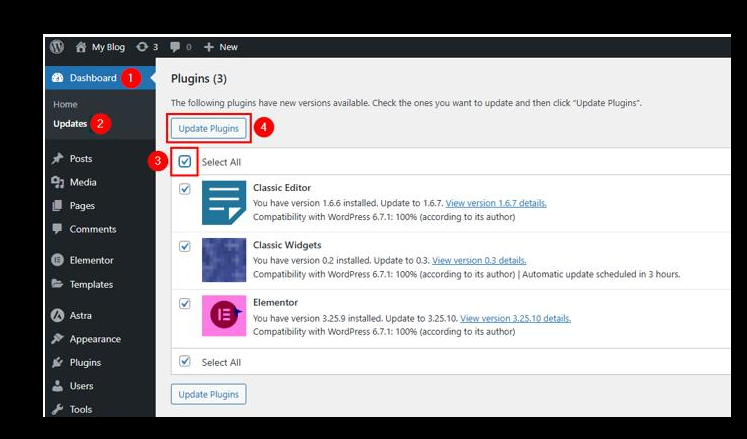
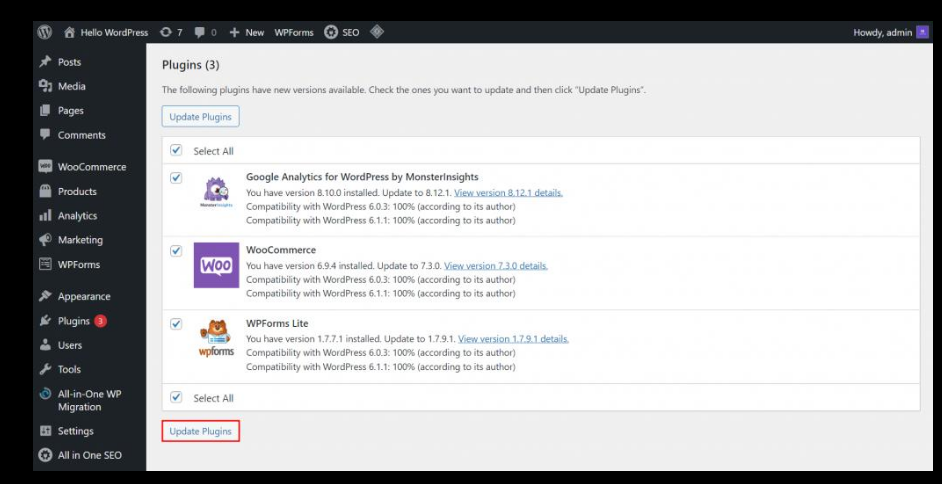
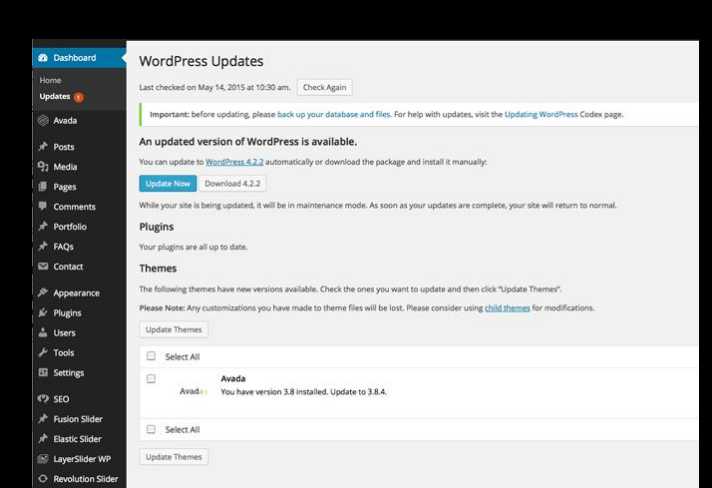
2. Update WordPress and Plugins
An outdated WordPress installation can prevent plugins from activating properly.
What You Should Update
- WordPress core
- Installed themes
- All plugins
Dashboard Path
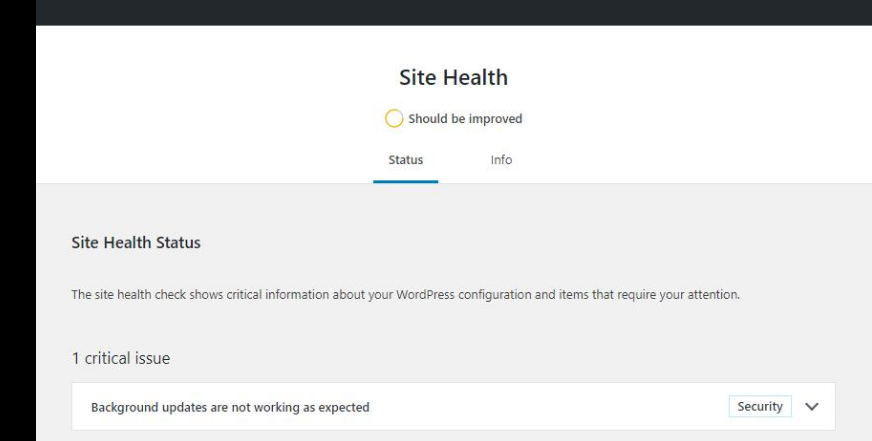
Dashboard → Updates
3. Check Your PHP Version
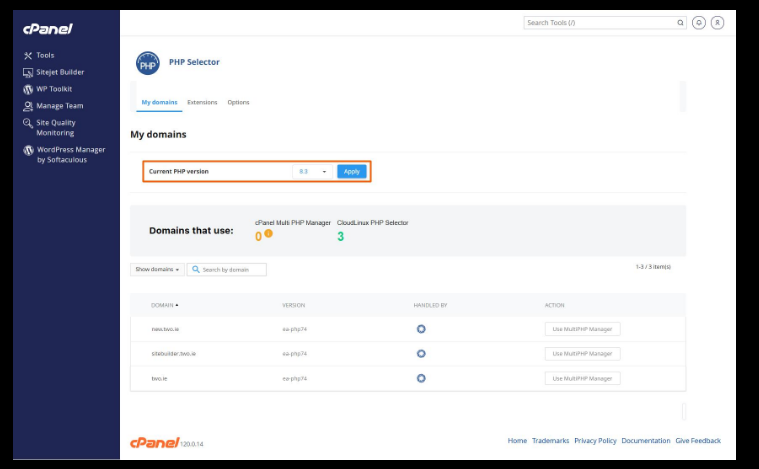
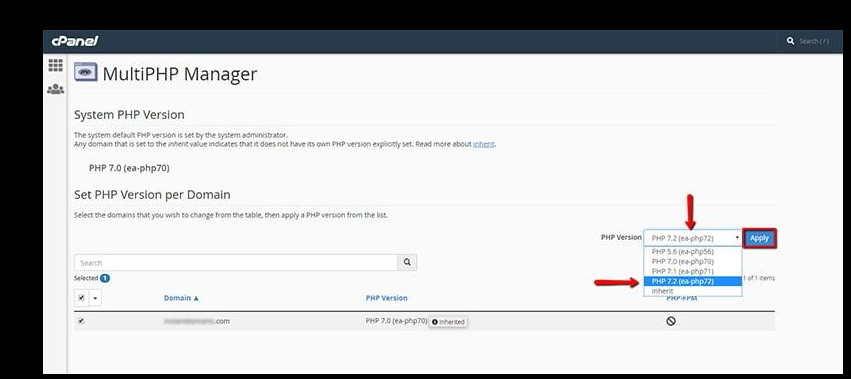
Many modern WordPress plugins require PHP 8.1 or higher.
If your hosting is still using PHP 7.x, activation errors may occur.
Recommended PHP Versions
- PHP 8.1
- PHP 8.2
How to Check Your PHP Version
Inside WordPress
Go to:
Tools → Site Health → Info → Server
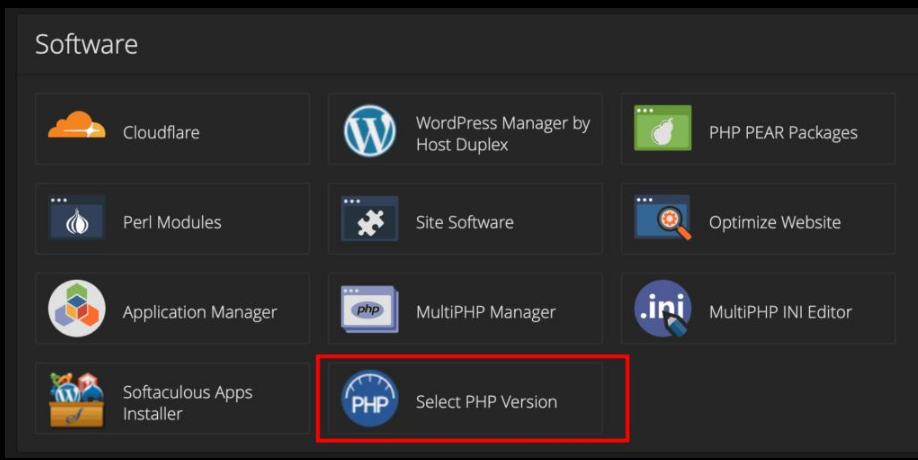
Inside cPanel
Open:
Select PHP Version
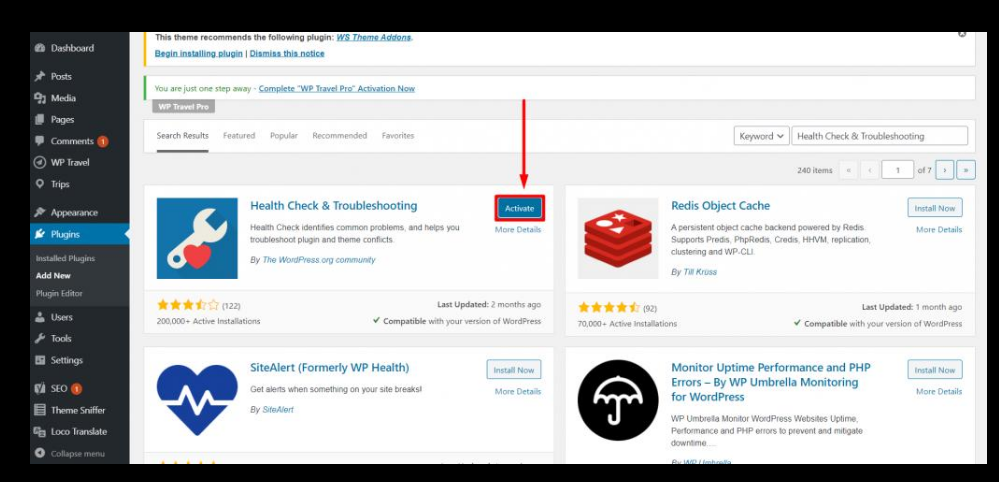
4. Check for Plugin Conflicts
Sometimes another plugin is causing the activation issue.
How to Test Plugin Conflicts
- Deactivate all plugins
- Try activating the problematic plugin again
- If it works, reactivate plugins one by one
This will help you identify the conflicting plugin.
5. Increase WordPress Memory Limit
If you see the error:
“Allowed memory size exhausted”, your PHP memory limit is too low.
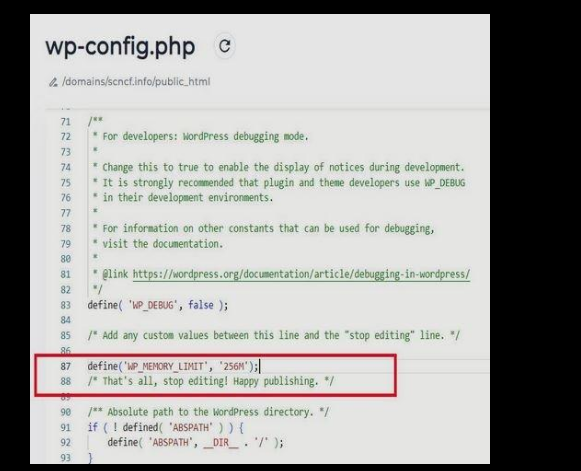
Add This Code to wp-config.php
define('WP_MEMORY_LIMIT', '256M');Add it above this line:
/* That's all, stop editing! */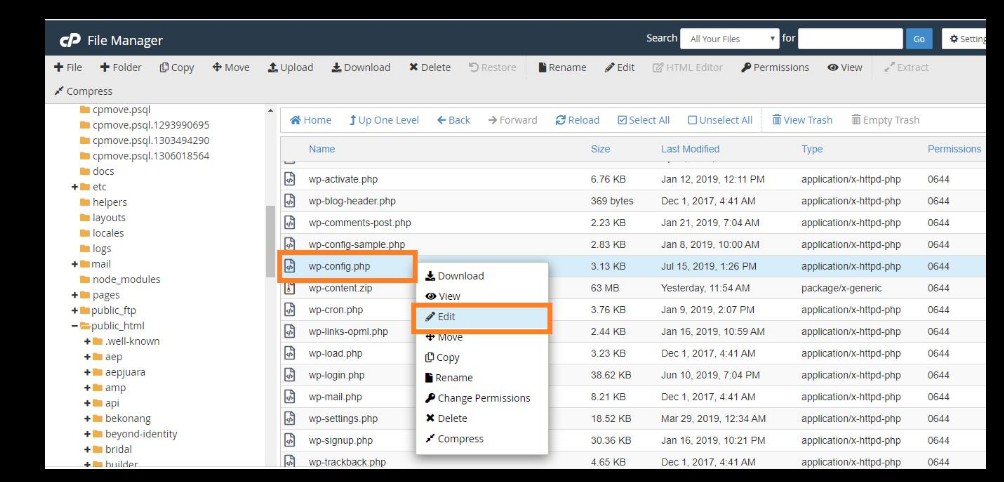
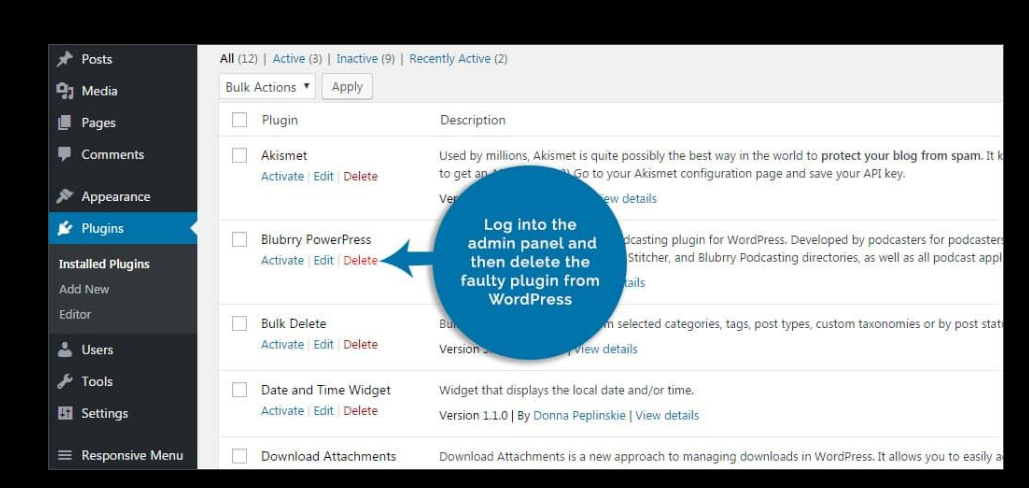
6. Reinstall the Plugin
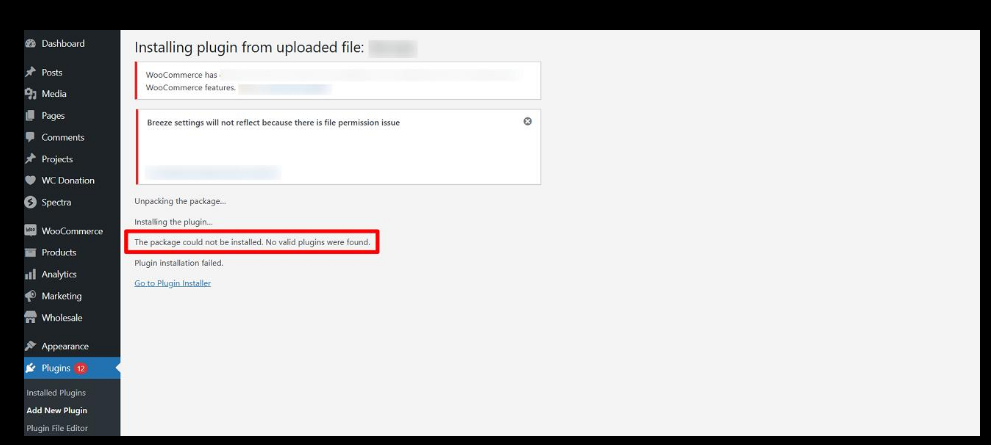
Sometimes the plugin ZIP file is incomplete or corrupted.
Steps
- Delete the existing plugin
- Download a fresh copy
- Upload and install it again
Always download plugins from trusted sources.
7. Test for Theme Conflicts
Your current theme may also be causing the issue.
Quick Test
Temporarily switch to a default WordPress theme such as:
- Twenty Twenty-Four
- Twenty Twenty-Five
Then try activating the plugin again.
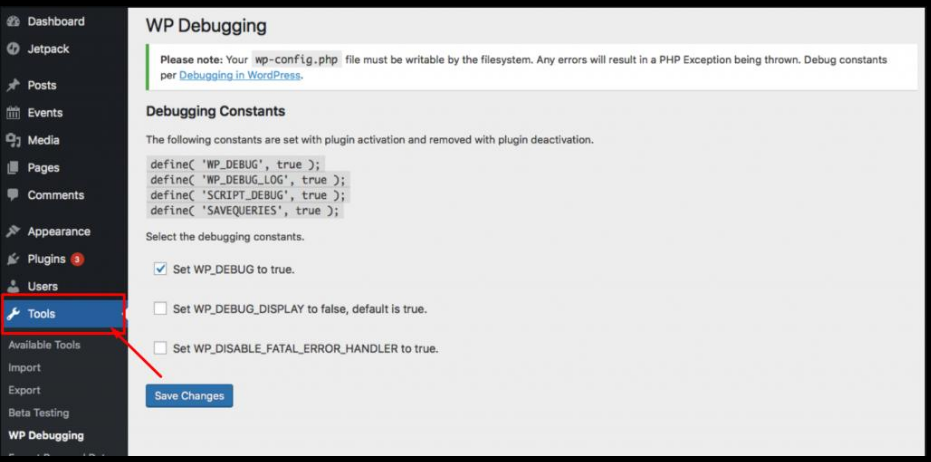
8. Enable WordPress Debug Mode
If you still cannot find the problem, enable WordPress debugging.
Add This Code to wp-config.php
define('WP_DEBUG', true);
define('WP_DEBUG_LOG', true);
You can then check error logs inside:
/wp-content/debug.log9. Contact Your Hosting Provider
If none of the above methods work, contact your hosting support team.
Ask them to check:
- ModSecurity restrictions
- PHP limits
- Disabled PHP functions
- Malware protection blocks
Providing screenshots of the error can speed up troubleshooting.
Bonus Tips
Avoid These Common Mistakes
- Avoid nulled plugins
- Keep PHP updated
- Don’t install too many heavy plugins
- Use quality hosting for WooCommerce or Elementor sites
Final Thoughts
The “Plugin Could Not Be Activated” error may look serious, but in most cases it can be fixed by:
- updating PHP,
- increasing memory,
- or checking plugin conflicts.